
32GB 9-in-1 Linux Bootable USB Drive for Beginners
4.2Editor score
Nine popular distros included
Great for beginner users
Pre-bundled software suite
This guide compares the top bootable Linux USB drives for 2026, featuring pre-loaded distros like Ubuntu, Mint, and Kali for easy testing and installation.
Finding the right bootable Linux USB drive can simplify your transition to open source computing. These drives allow you to test operating systems without installing them permanently on your hard drive. They are essential tools for developers, IT professionals, and casual users alike.
We have evaluated ten leading options based on compatibility, ease of use, and the variety of Linux distributions included. Our comparison considers both legacy and UEFI boot support to ensure broad hardware compatibility across different devices and setups.
Each pick highlights unique strengths such as specific distro versions, portability features, and included software suites. Please note that product availability and pricing can change frequently, so always verify current details before making your final purchase decision.
4.2Editor score

4.1Editor score

4.6Editor score
The following table provides a side-by-side comparison of all ten products featured in this guide. It highlights key specifications and compatibility details to help you quickly identify the best fit for your hardware needs.



This 16-in-1 bootable USB drive stands out for its sheer variety of operating systems. Rated highly by users, it offers a comprehensive toolkit for testing different Linux environments alongside Windows 11 without altering your primary hard drive.
We may earn a commission when you buy through this link, at no additional cost to you.
The inclusion of sixteen different distributions means you can experiment with security-focused options like Kali, stable daily drivers like Ubuntu and Mint, or specialized tools like Tails. It supports both UEFI and Legacy boot modes ensuring compatibility with a wide range of hardware configurations.
While the breadth of options is impressive, it might be overwhelming for absolute beginners who prefer a simpler choice. Additionally, ensuring all versions remain current requires occasional updates though the provider states they test the ISOs before release.
This drive is ideal for IT professionals, hobbyists, or anyone wanting to evaluate multiple systems quickly. If you need a portable arsenal of tools for troubleshooting or learning, this product delivers exceptional value and versatility.
You get access to sixteen different distributions including Windows 11, which allows for diverse testing scenarios.
Run the operating systems directly from the USB stick preserving your existing data and system integrity.
We may earn a commission when you buy through this link, at no additional cost to you.
Designed specifically with beginners in mind, this 9-in-1 drive simplifies the Linux experience. It comes pre-loaded with nine popular distributions that are known for their user friendly interfaces and comprehensive software bundles.
We may earn a commission when you buy through this link, at no additional cost to you.
Each distro includes essential tools like office productivity suites, web browsers, and media players making it easy to transition from Windows without losing productivity. The drive supports both Legacy and UEFI boot modes ensuring it works with most laptops and desktops available today.
While it offers excellent value, the 32GB capacity might limit how many customizations you can make on the fly. However for testing and installation purposes it provides sufficient space for most standard Linux installations and live environments.
This product is perfect for anyone new to Linux who wants a hassle free start. The included printed guide helps with boot issues and the selection of distros ensures you find a familiar and comfortable environment quickly.
The selected distributions prioritize ease of use with familiar interfaces and pre-installed applications.
Includes office suites and media tools so you can work immediately after booting.
We may earn a commission when you buy through this link, at no additional cost to you.
This dedicated Mint 22.3 drive offers a highly refined Linux experience perfect for those seeking stability. With a polished interface and comprehensive software suite it feels like a complete operating system out of the box.
We may earn a commission when you buy through this link, at no additional cost to you.
The inclusion of LibreOffice allows for immediate productivity work while the Cinnamon desktop provides a familiar layout for Windows users. It is optimized to run smoothly without modifying your hard drive making it ideal for temporary use or testing compatibility.
While it excels in stability it lacks the variety of multi-distro options. If you need to test niche distributions or specialized tools this drive focuses strictly on the Mint ecosystem which might be limiting for some users.
This drive is best for users who want a reliable and comfortable Linux environment. Whether you are switching from Windows or need a portable system for work it delivers a premium experience with minimal setup.
Includes LibreOffice for word processing spreadsheets and presentations right out of the box.
Designed to run smoothly on modern hardware without requiring system modifications.
We may earn a commission when you buy through this link, at no additional cost to you.
Known for its legendary stability this Debian 13.7 drive offers a trusted and secure Linux experience. It is designed to be fast and lightweight making it suitable for both modern and older hardware configurations.
We may earn a commission when you buy through this link, at no additional cost to you.
The system prioritizes privacy and security with no tracking or bloatware included out of the box. This makes it an excellent choice for professionals or users who value control over their computing environment and data integrity.
While Debian is highly reliable it may require more technical knowledge to configure compared to user friendly alternatives. If you prefer a streamlined setup out of the box other options might be more suitable for immediate daily use.
This drive is ideal for IT professionals or developers who need a stable base. Its open source nature allows for extensive customization ensuring you can tailor the environment to your specific requirements.
No tracking or bloatware ensures your data remains secure and under your control.
Debian is trusted worldwide for its stability and consistent performance.
We may earn a commission when you buy through this link, at no additional cost to you.
This 16GB drive focuses on providing a reliable Mint 22.3 environment for installation and repair tasks. It is designed to work seamlessly with x86-64 PCs offering a stable experience for those maintaining or upgrading systems.
We may earn a commission when you buy through this link, at no additional cost to you.
The live environment allows you to test the OS without committing to a full install which is crucial for verifying hardware compatibility. It is particularly useful for users who need to recover or reinstall Mint on existing machines.
While it offers solid functionality the 16GB size limits custom storage options. Additionally it focuses solely on Mint meaning users seeking other distributions will need to look at alternative products for broader testing.
This drive is best for Mint users needing a dependable installation or repair tool. The included instructions help with boot settings ensuring you can access the drive on most computers without technical hurdles.
Use the live environment to test compatibility before committing to an installation.
Offers a reliable Mint 22.3 experience with the familiar Cinnamon desktop.
We may earn a commission when you buy through this link, at no additional cost to you.
This 3-in-1 drive offers flexibility by including multiple versions of Linux Mint for both modern and older computers. It supports both 32bit and 64bit architectures ensuring broader compatibility across different hardware generations.
We may earn a commission when you buy through this link, at no additional cost to you.
Having multiple versions allows you to test which one fits your specific hardware best without switching drives. The included versions are updated as needed to ensure you have access to relatively recent builds of the OS.
While versatile it is limited to the Mint ecosystem which might not suit users seeking other distributions. Also the updates depend on the provider so checking the latest version is recommended before use.
This drive is perfect for mixed hardware environments where some PCs are older. It balances compatibility and usability providing a reliable Mint experience for a wide range of users.
Includes both 32bit and 64bit versions to suit older and newer computers.
The versions included are updated when necessary to keep them relevant.
We may earn a commission when you buy through this link, at no additional cost to you.
This 7-in-1 drive focuses on niche tools and specialized Linux distributions including security and recovery options. It is particularly useful for IT tasks where specific utilities like Clonezilla are required for imaging or cloning.
We may earn a commission when you buy through this link, at no additional cost to you.
The inclusion of Windows XP and various Linux distributions like Kali and Tails allows for diverse testing scenarios. It supports both UEFI and Legacy boot modes making it compatible with a wide range of hardware systems.
While the capacity is smaller at 16GB it suffices for temporary use and tool testing. Some users might find the older versions limiting but the core functionality remains useful for specific administrative tasks.
This drive is best for users needing a toolkit for maintenance and security testing. If you require specific utilities or want to experiment with various distributions it provides a compact and practical solution.
Includes tools like Clonezilla for system imaging and recovery tasks.
Features distributions like Kali and Tails for security testing and privacy.
We may earn a commission when you buy through this link, at no additional cost to you.
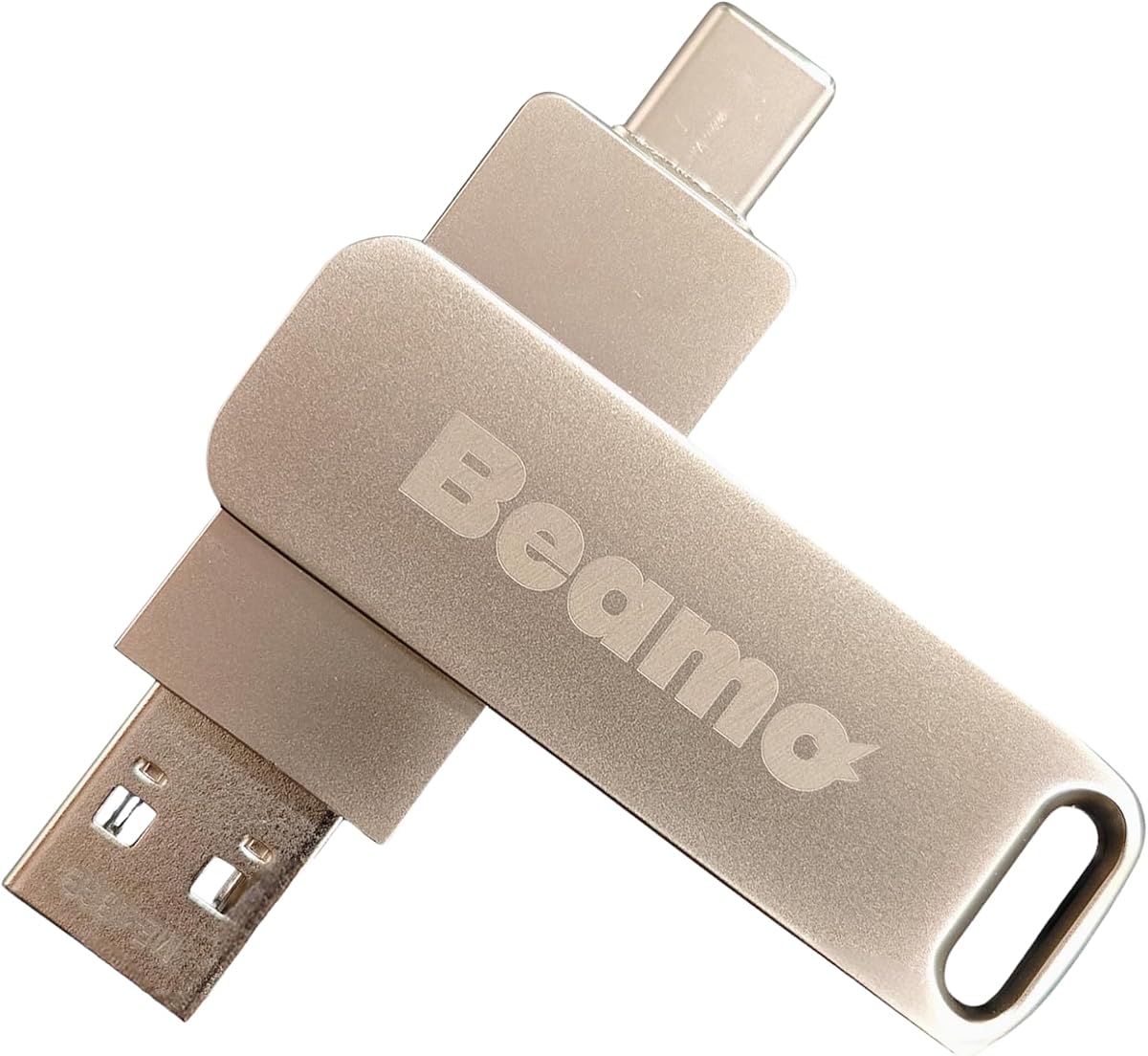
This dual connector drive offers flexibility with USB-A and USB-C support ensuring it works with both modern and older devices. It provides a customizable Mint environment allowing you to add or replace ISOs as needed.
We may earn a commission when you buy through this link, at no additional cost to you.
The hardware is built with high quality flash chips for speed and longevity while the OS prioritizes privacy with no forced updates or account requirements. This makes it suitable for users who value control over their system behavior.
While it offers great customization the focus on Mint means it may not suit those seeking other distributions. Additionally the premium price reflects the hardware quality but might be higher than standard options.
This drive is ideal for users who want a modern and customizable experience. If you need USB-C compatibility and value privacy this product delivers a premium and practical solution.
Includes both USB-A and USB-C connectors for broader device support.
Allows you to add or replace ISOs to suit your specific needs.
We may earn a commission when you buy through this link, at no additional cost to you.
This 3-in-1 drive offers a range of Ubuntu versions including Long Term Support releases and Lubuntu for older hardware. It is a solid choice for users who prefer the Ubuntu ecosystem for reliability and community support.
We may earn a commission when you buy through this link, at no additional cost to you.
The inclusion of LTS versions ensures long term stability and security updates which is ideal for both personal and professional use. Lubuntu provides a lightweight option for older PCs allowing them to run smoothly without issues.
While versatile it focuses solely on Ubuntu which might not suit those seeking other distributions. The older Lubuntu version is useful but may lack some modern features found in newer releases.
This drive is best for users who want stable and long term support. If you are comfortable with Ubuntu and need support for various hardware it provides a reliable and practical tool.
Includes LTS versions ensuring stable updates and long term reliability.
Lubuntu allows older 32bit hardware to run efficiently.
We may earn a commission when you buy through this link, at no additional cost to you.
This USB drive offers versatility with both desktop and server installers making it suitable for a wide range of use cases. It supports USB-A and USB-C connectors ensuring compatibility with modern and legacy devices.
We may earn a commission when you buy through this link, at no additional cost to you.
The inclusion of server tools allows for learning Linux administration and hosting tasks which is valuable for professionals. The desktop environment is clean and intuitive offering a stable experience for daily use.
While it is a great all-rounder it is limited to Ubuntu which might not suit users seeking other distributions. Advanced server tools may require technical knowledge but are useful for professional environments.
This drive is ideal for users who want desktop and server options. If you need to manage servers or learn Linux administration it provides a robust and practical tool.
Includes server installers to help with hosting and learning Linux administration.
Supports both USB-A and USB-C for broader device compatibility.
We may earn a commission when you buy through this link, at no additional cost to you.
Selecting the right bootable Linux USB drive depends on your specific needs and hardware. This guide outlines the key factors to consider to ensure you make an informed decision.
Consider how many operating systems you need. Multi-distro drives offer variety while single distro drives offer simplicity. Choose based on whether you want to test multiple options or focus on one.
If you need variety look for multi-distro options. If you prefer simplicity choose a single distro drive.
Ensure the drive supports both Legacy BIOS and UEFI modes. Modern systems often use UEFI while older ones use Legacy. Compatibility is key to successful booting.
Look for products that support both UEFI and Legacy modes for widest compatibility.
Faster interfaces like USB 3.0 or 3.2 offer quicker boot times and better performance. Check the USB type to ensure it matches your ports for optimal speed.
Prioritize USB 3.0 or higher for better performance during live sessions.
Higher capacity drives allow for more data and customization. While 16GB is often enough for testing larger drives offer room for files and updates.
Choose higher capacity if you plan to store files or multiple ISOs.
User guides and simple installation processes reduce setup time. Beginners should look for products with clear instructions and intuitive interfaces.
Select drives that include guides and are easy to configure for beginners.
Confirm the drive works with your specific hardware. Check for ARM support or specific architecture limits if you use non-standard PCs.
Ensure compatibility with your device architecture before purchasing the drive.
For sensitive tasks look for distros focused on privacy. Options like Tails provide tools for secure browsing and data handling.
Choose security focused options if privacy is a priority for your tasks.
Responsive support helps resolve boot issues quickly. Check if the seller provides technical help or troubleshooting resources for users.
Prioritize products with responsive customer support to solve technical issues.
Insert the USB drive into your computer and restart. Enter the boot menu by pressing the designated key usually F12 or F2 depending on your manufacturer. Select the USB drive from the list to start booting.
Once booted you can test the operating system or install it. Follow the on-screen instructions to proceed with installation if desired. Ensure you select the correct partition to avoid data loss.
To maintain the drive avoid removing it while in use. Store it in a protective case to prevent physical damage. Regularly check for updates to keep the software current.
Yes some bootable drives include Windows options like Windows 11 or XP. However most focus on Linux distributions. Check the product description to confirm Windows support.
Yes live sessions do not modify your hard drive. They run entirely from the USB stick. Installation will change your hard drive so back up data first.
UEFI is the newer standard for modern computers while Legacy supports older hardware. Most drives support both modes ensuring compatibility with a wider range of devices.
No live sessions allow you to use Linux directly from the USB. Installation is optional if you want permanent access. Try the live version first to ensure it works.
Flash drives have a limited write cycle but typically last years with normal use. Physical wear and tear can affect longevity so handle them carefully.
Most drives are designed for x86 PC hardware. Apple Silicon and some ARM devices have different requirements. Check compatibility details before purchasing for Mac use.
Most include essential tools like office suites browsers and media players. The specific apps vary by distribution. Check product details to see included software.
Updates depend on the vendor. Some drives are updated periodically while others are static. Check product listings for update policies before buying.
We have reviewed ten top options offering a range of distros and features. From multi-distro variety to single OS simplicity there is a fit for every user.
Consider your needs carefully whether it is stability for work or variety for learning. Prioritize compatibility and ease of use for the best experience.
Remember to check current availability and prices as they change frequently. Select the drive that aligns with your goals to start your Linux journey today.